Thursday, December 5, 2019

How to Prevent, Detect, and Recover from Dumb Photographer Mistakes


By: Rick OhnsmanRick Ohnsman

I make ’em, you make ’em, all photographers make ’em sooner or later – dumb photographer mistakes.
Today’s cameras are now essentially computers, and the saying about computers is, “They do what you tell them to do, not what you want them to do.”  Leave a switch in the wrong position, forget to restore a setting after taking a prior image, or toggle any myriad of other possible things other than they should be and it’ll happen – the “gotchas will getcha.”
I’ve yet to meet the perfect photographer, the one that never makes dumb photographer mistakes.  The difference is learning to quickly discover a problem, determine what the problem may be, and knowing how to quickly recover.  The intent of this article is to cover some of the more common mistakes and perhaps spare you the pain of learning them the hard way.
“Smart people do stupid things. Stupid people don’t learn from them.”
Frank Sonnenberg
Image: We all make ’em – Dumb Photographer Mistakes. When the gotchas getcha, being able to qu...
We all make ’em – Dumb Photographer Mistakes. When the gotchas getcha, being able to quickly
recover is key.

The “Happy Idiot”

The worst mistakes you can make in photography are the ones you don’t detect until later, after the photo session, maybe even back home when you finally sit down to edit your shots.
Before digital, this was the kind where you might happily shoot an entire session, get home, open the back of the camera and see you’d forgotten to load any film.
This might still happen in a digital camera if you have the setting “release shutter without card” turned on and then never “chimp” your shots to see what you’re getting.
Recover-from-Dumb-Photographer-Mistakes
When in a store in demo mode, it might be fine to have the shoot without card mode enabled. In
all other cases, it’s a very bad idea.
Some photographers will tell you that chimping your shots (checking them on the LCD after taking them), is a sign of an amateur.  Okay,  you “perfect photographers” might not need to do this.  Me?  I chimp whenever I can.  The times when I’ve been burned most often were when I didn’t check.
One of the best things digital photography gives us is the ability to immediately review our images after taking them. We can do so right there in the field where we can immediately detect and remedy any problems.
I still bow to the wedding photographers who used film. They shot an entire wedding and were so confident in their abilities that they rarely had any nasty surprises when they developed the negatives.
There’s nothing worse than snapping away like a “happy idiot,” clueless that you’re just making those dumb photographer mistakes.

Something’s wrong here

In the medical world, they talk about “early detection.” Catch a problem early, and you can reverse it. You minimize the damage and perhaps even find a cure.
So let’s use that medical terminology; symptomdiagnosis, and cure as we look at some typical dumb photographer mistakes you might make.
Recover-from-Dumb-Photographer-Mistakes
Everyone will make dumb photographer mistakes occasionally. A smart photographer can quickly
identify symptoms, diagnose the problem, and affect a cure to recover quickly.

Focus Faux Pas

Flubs, foul-ups, and a few other f-words can describe what happens when you fail to get fine focus in your photos. Worse is that while we can sometimes rescue an exposure issue in editing, to date, there is no cure for a misfocused, unsharp, image. Let’s use our terms to address some of the dumb photographer mistakes you might make.

Symptom – The entire image is fuzzy, nothing sharp in the shot

Diagnosis – If you’re using Autofocus, is the switch “on”? Are you half-pressing/holding/getting focus lock and then squeezing the button the rest of the way to trip the shutter?
I’ve seen many newbies either push the shutter button in one quick motion (both shaking the camera and not allowing it to get focus before making the shot). I’ve also seen them half-pressing, getting focus, releasing, and then pressing the button a second time.
Image: Did you forget to turn on the Autofocus switch? Or used Manual Focus and then forget to turn...
Did you forget to turn on the Autofocus switch? Or used Manual Focus and then forget to turn it
back on? When you are having focusing issues, this should be the first check.
Another possibility is that the shutter speed is too low. If you’re handholding the camera, remember the “Reciprocal Rule,” which simply means your shutter speed should be at least the inverse or your focal length. So, with a 50mm lens, that would be 1/50th. Out at 400mm, that would be 1/400 second.
You might get away with a slightly longer shutter speed if your camera or lens has image stabilization. However, it’s better to err on the side of a faster shutter speed when you can.
Of course, if you want to freeze a fast-moving subject, a shorter shutter speed will be required.
If you’re manually focusing, such as when making landscape photos, you can go to live view. Use the magnifying feature to check critical focus on a particular spot, and then make your shot. But here’s the “gotcha” with this one. (Don’t ask me how I know about this.) You use that method to make your photo, then go onto making other shots, but forget you’ve turned off autofocus. The camera may still fire, even if the focus is slightly off. While you might not detect a very slight misfocus while in the field, you’ll cuss later when back in edit, you detect your mistake.
Cure – There is no editing cure for photos where the focus is soft.  Yeah, I know Photoshop and other software has some tools that claim to fix blurry photos.  Some are even using  Artifical Intelligence (AI) to do it now.  It sorta, kinda works, but there is no substitute for getting it sharp in the field.  Learn proper focusing techniques.  Let’s look at some other typical focus flubs.
Recover-from-Dumb-Photographer-Mistakes
Understand and use the autofocus points in your camera. Most cameras will default to the center
point, and if your subject is not in the center, you may not get focus on the subject you want.

Symptom – Some things in the image are sharp, just not where you wanted

Diagnosis – Did you use the focus-points in your camera and put them on what you wanted in focus? Beginners often don’t know about focus points, merely using the default center point. Then, when what they wanted in focus wasn’t in the center, they wonder why the subject isn’t focused. Another possibility is too wide an aperture giving too limited a depth of field. A good example is a group photo where people in the front row are in focus, but the second-row people aren’t.
Cure – There’s no cure for the shots you already made that are blurry. However, if detected in the field, check to be sure you are using the focus points properly.
If your subject is moving, perhaps continuous (servo) focus might be appropriate. Be sure your aperture selection gives you adequate depth-of-field too.
Image: When working on a tripod, turn off the image stabilization. It won’t help, and in fact,...
When working on a tripod, turn off the image stabilization. It won’t help, and in fact, might hurt
image sharpness.

Symptom – You were on a tripod, but your shots are still slightly soft

Diagnosis – Is the stabilization switch on your camera or lens on?
Cure – When working on a tripod, turn off the auto stabilization.  It won’t help and could possibly hurt your images, attempting to compensate for motion that isn’t there.

Switches and buttons and menus, oh my!

There are so many settings in modern cameras that it can be overwhelming. Many of the auto modes can be lifesavers, relieving the “chores” of photography and letting the photographer instead concentrate on being creative.
They are great when they work.
Where they fail is when the camera is “fooled” by circumstances where an intelligent photographer would choose differently, or when settings are inadvertently left on or off.
Let’s look at some examples.
Recover-from-Dumb-Photographer-Mistakes
Spot metering has its uses, but forget to switch back to something like matrix/evaluative metering
when you’re done, and you will puzzle over why your images are wildly exposed.

Symptom – The exposure seems completely out of whack, regardless of the mode you’re using

Diagnosis – Did you go to Spot Metering for a previous shot and forget you left that on?
Cure – Many cameras now warn the user they are in spot metering mode with a “!” mark in the viewfinder.  Spot metering has very specific uses, and in those cases, it’s terrific.  In most other cases, it will wildly mess up your exposure and leave you to wonder why.
Image: Auto Noise Reduction works by taking a second black frame and combining it with your exposure...
Auto Noise Reduction works by taking a second black frame and combining it with your exposure.
You get to wait while it does that. Decide if that’s acceptable before engaging the option.

Symptom – You make a shot and it seems to take the camera a long time before it’s ready to make another.

Diagnosis – If you have the Long Exposure Noise Reduction feature turned on and are making longer exposure images, the camera will take a second “black frame” image and then use that to reduce noise.  Sometimes that’s great, but realize it will take twice as long for the camera to process and store the image, sometimes making you wait.
Cure – Use the Low Exposure Noise Reduction feature only in special circumstances (perhaps when doing astrophotography where high ISO and noise might be involved). Otherwise, turn it off.
Image: You might use multi-shot bracketing to make images you’ll combine later. Be sure to tur...
You might use multi-shot bracketing to make images you’ll combine later. Be sure to turn it off
when done or you’ll get a surprise when making subsequent shots.

Symptom – You click the shutter, the countdown timer activates and then fires off five shots

Diagnosis – You probably set up the camera with a 2-second timer and also for a 5-shot bracket.
Cure – This is a great feature when you want it, but after you’re done, return the settings to single-shot and turn off the countdown timer setting.  Otherwise, when you only want a quick single shot, you’ll wait while the time counts down and then get several.
Image: You might have an occasion to only want .jpg images, but don’t forget to put it back to...
You might have an occasion to only want .jpg images, but don’t forget to put it back to Raw when
you’re done. Your editing options are much more limited with .jpg files. You will be very sad if you
intended to make Raw images and only come home with .jpgs.

Symptom – You get home from a session and all of your images are .jpg, no raw images to be found on the card

Diagnosis – You probably did an earlier shoot where you only needed .jpg images. You set the camera to do that, and then forget to put it back.
Cure – You can still work with .jpg images, but you will have greatly reduced editing options.  Chimping will not tell you when this is happening as the image you see on the LCD is always a .jpg. So make it a habit to always put your camera back in Raw Mode after a shoot if you’ve changed it.

Return to a standard

I could go on about all the settings, buttons, and dials you might have in the wrong position, what will tip you off, and how to correct such problems. There are dozens of “gotchas” when this occurs.
The common cure is to always return to your personal defaults if you’ve strayed for a special situation. Make it a habit to check and return your settings to your defaults when you put the camera away. Then, when you’re driving down the road on the way home and Bigfoot (Yowie in Australia, or beasts with a few other names in other parts of the world), suddenly steps out of the forest, you can quickly turn on the camera and have a better chance of getting the shot.
Seriously, for any situation where you don’t have time to fiddle with all your settings, you want a standard that will pretty much give you quick point-and-shoot capability. I can’t tell you what that is for you, but it’s your base settings. It’s the place you most often work from and use for a good majority of your photos.
For me, this is the “P” or Program mode of my camera, Single-point Auto-focus, Auto White Balance, and Auto ISO. Sure, that’s quite automatic and perhaps not where I’ll ultimately go. Maybe I’ll be using Aperture Priority, Continuous Focus, and ISO 100 or even Manual exposure mode, but it’s a great default to work from.
My brain might (hopefully) be better, but the camera is quicker. Plus, the engineers that developed auto modes were no dummies. When seconds count, and Bigfoot appears, I can be ready.

Program in specialized settings

I love that I can also have more sophisticated set-ups stored in the Camera User (C1 and C2) modes on my Canon 6D. Many other cameras have this option too, a way to set-up and store various settings and then recall those so that with a spin of the mode dial, you can use all those settings.
For example, should I want that 5-shot bracket with a 2-second timer, Evaluative metering, ISO 200, Auto ISO, Aperture Priority with a f/11 f-stop, and perhaps a few other things thrown in, I can get there with a turn of the dial to C1 or C2, wherever I have that combination stored. When done, I put the dial back to my standard. Quick to turn on, quick to turn off, no “gotchas.”
Mistakes are lessons inside out.”
Matshona Dhliwayo
Recover-from-Dumb-Photographer-Mistakes
My Canon 6D has two memory storage locations; C1 and C2. They are great for entering more
complex camera settings with the ability to turn them on and off with the turn of a dial.

Filter forgetfulness

I wish I didn’t know about this one first hand.
I was shooting earlier in the day with my circular polarizer on. Later that evening, as the light was getting low, I knew I’d have to perhaps raise the ISO a bit, so I did. So why was I still having to use longer shutter speeds and wider apertures than I thought I should? Oh well, I made my shots figuring I could deal with the issue later in post-production.
As I was putting the camera away, I saw my blunder – the polarizer was still on! Arghhh!!
I’d needlessly given up two-stops of light because I hadn’t taken the filter off when I was finished using it. I won’t make that mistake again. The takeaway? Turn your mistakes into lessons so you won’t repeat them.
Recover-from-Dumb-Photographer-Mistakes
Here’s a fun and educational game to play with your photographer friends.

Play “Stump the Chump”

Here’s an exercise I’ve used with photo students to teach them to quickly detect, diagnose, and recover from a camera problem. I take their camera, have them turn their back, and then purposely change a setting, flip a switch, or do something else that will create a problem. I might even swap in a dead battery or a full storage card.
When they turn around, I hand them the camera. They have three minutes and three shots to put things right and make a good image. The fourth shot, when the three minutes are up, must be a good one.
This exercise teaches them the controls of the camera and how to detect and cure camera problems. It’s all too easy to inadvertently bump the wrong button, select the wrong menu item, or leave a setting in the wrong position after a previous shot.
Something else to practice is learning where all your camera controls are in the dark. How many times have you fumbled in a low light or night photo session because you haven’t memorized the basic buttons and settings on your camera? When the situation is fleeting, and you must get the shot now, having to futz around with the camera is the mark of a rookie.
Recover-from-Dumb-Photographer-Mistakes
Take a page out of the Boy Scout Handbook when packing your camera bag for a photo session or
trip and Be Prepared! It will head off many dumb photographer mistakes.

Be prepared

It’s the Boy Scout motto – Be Prepared!  You will head off many dumb photographer mistakes by taking the time to check, maintain, properly pack, and re-check your gear before you go.
Here is a checklist that you might want to copy and save:
  • Have the camera bodies and lenses you might use?  Don’t carry more than you need, but also don’t leave home something you might want. Learn how to properly pack for any given photo session or trip.
  • Batteries fully charged?  You wouldn’t start a trip with a half-tank of gas.  Don’t go out with a battery only half-charged.  Don’t be “half-gassed.”  Have extra, fully-charged batteries and charger.
  • Storage cards off-loaded, formatted, and empty before you go?  Always have more storage than you expect to need.  You never want to have to delete photos in the field so you can make more room.  Don’t use your cards for long term storage.  After a session, offload your images to your computer, make a backup elsewhere, and then format your card with the camera.  Deleting images with the card in the camera increases the risk of file corruption.
Image: A smudge on your lens can ruin an entire photo session if it goes undetected. Clean your lens...
A smudge on your lens can ruin an entire photo session if it goes undetected. Clean your lenses
before a shoot and then periodically look at them during a session.
  • Lenses cleaned? A big smudge, undetected can ruin an entire session.
  • Have your filters? Digital editing tools have greatly reduced the need for specialized filters, but the one for which there is no substitute is the circular polarizer.  What you want will, of course, depend on what you expect to be photographing.
  • Tripod cleaned, screws tight?  Is your tripod plate or L-Bracket on the camera or attached to the tripod?  Not being able to mount your camera to the tripod, or having something break or fall off, will ruin your day and maybe your camera too.
  • Sensor cleaned?  Yeah, you can remove sensor dust specks in editing, but save yourself the work by checking it before a shoot. Clean it when necessary or have a pro do it if you feel you don’t have the skills.
  • Have your camera strap? When going handheld, the camera strap is your “safety belt.”  Fumbling and dropping an expensive camera has been known to make grown men cry.
  • Have a camera rain cover? Check the forecast, and if in doubt, have a rain cover.  I just keep one in my pack at all times.
  • Have photographer comfort items Hat, gloves, sunscreen, and bug repellant?  When you’re miserable, your photos will suffer.
  • Water and snacks? A happy photographer is a well-fed, well-hydrated photographer.

“Learn from the mistakes of others. You can’t live long enough to make them all yourself.”
Eleanor Roosevelt

It’s been said that if you’re not making mistakes, you’re not trying hard enough. I would add that if you’re not more adventurous and explorative with your photography, always shooting the same subjects with the same camera settings, in the same way, you’re likely in a rut. You might make fewer mistakes, but you will also make fewer unique and exciting photos.
The same goes for learning what you can do with your camera. If you always work in full Auto or Program mode, always use Auto-Focus, always shoot .jpg or rely too much on your camera to do your thinking, you’ll make fewer mistakes, but just average photos. Be adventurous, go full-manual, try new things, and make some mistakes. It’s okay. When you do, think about what went wrong and try it again.
As for the just plain “dumb photographer mistakes,” the kind we covered here, they are a fact of photographic life. You’re gonna make ’em.
Learning to quickly detect, diagnose, and rapidly recover – that’s the mark of a pro. We can also learn from each other, so be a little humble and share your mistakes here with your fellow photographers in the comments section below. We can all have a chuckle and then perhaps not have to make those same mistakes ourselves.

Share this article.

Wednesday, December 4, 2019

The 6 Top Photoshop Tools for Still Life Photography


Even if you do most of your editing in Lightroom, you’ll still find that you need Photoshop to really finesse your photos. Because it’s a pixel editor, Photoshop offers you more retouching tools and gives you further control than you can obtain from Lightroom.
In still life photography, like food and product, every aspect of your image needs to hold up to scrutiny for maximum impact. It needs to look clean and perfect.
There are certain tools in Photoshop that will help you tweak the best out of your images.
Although this article won’t go in-depth for every single tool – you’d need several articles for that – it will get you up and running in applying some basic treatments to your still life photography.
So without further ado, here are the most useful Photoshop tools for still life photography.
Photoshop for still life photography

1. Spot Healing Tool

The Spot Healing tool is one Photoshop tool that you’ll use on every still life image you retouch in Photoshop. This tool has improved greatly over the years.
Similar to the Healing Brush tool, it samples pixels from the surrounding areas to correct blemishes and imperfections. However, unlike the Healing Brush, it automatically samples the pixels without your having to specify where they should come from.
Why is this so great? Because the Spot Healing brush does this way better than it used to. This means you can remove dust and small marks very quickly.
If you’ve ever tried the Spot Removal tool in Lightroom, you’ll know that clicking on it repeatedly will quickly slow down Lightroom’s performance. Photoshop will give you better results, more quickly.
When you’re dealing with still life photography, remember that you want a clean-looking image. Zooming in on your photo at 100% and cleaning up any dust or blemishes will make a big difference in the overall aesthetic.
To use the Spot Healing tool, select it from the tool menu or hit J.
Zoom into your image and simply click on the blemish you wish to correct. It will automatically sample from an appropriate area and apply the pixels.
You can also clean up a larger area by brushing over it.
One thing to note is that if you use it repeatedly in a small area, the pixels can start looking unnatural and plastic-like.
The 6 Top Photoshop Tools for Still Life Photography

2. Patch Tool

The Patch tool is another Photoshop tool for still life photography that you’ll most likely use on the majority of your images.
It works great on small areas by creating a selection and replacing the pixels with other pixels of your choosing. It considers lighting, shade and texture when sampling an area.
The 6 Top Photoshop Tools for Still Life Photography
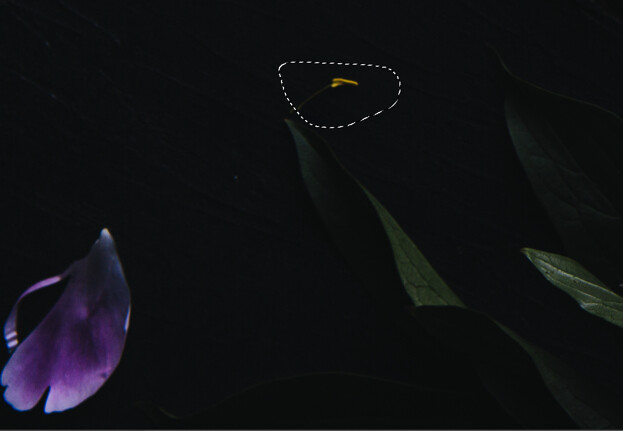
In the image below, I wanted to get rid of the yellow filament from my flower because I found it distracting.
There are many ways to do this in Photoshop, but I find the patch tool quick and seamless for this type of correction.
To use the tool, select it from the toolbar.
Draw a selection around the area that you wish to correct.
The 6 Top Photoshop Tools for Still Life Photography
Click on your mouse and drag the selection to an area that you would like to replace the selected pixels with. Let go of the cursor.
Press Command D to undo the selection.
To have greater control over the final result, make sure you have Content-Aware selected in the tool menu and play with the Structure and Color to further influence the edges.
Photoshop Tools for Still Life Photography
The 6 Top Photoshop Tools for Still Life Photography

3. Content-Aware Fill

Content-Aware Fill is sort of like the Patch tool on steroids.
It was first introduced in CS5 as a fill option in the Fill Dialog box. In 2019, Adobe improved this tool by leaps and bounds.
Content-Aware analyzes the pixels from a chosen area to determine what pixels it should use to remove unwanted objects. With the improvement, it allows you to choose exactly where you want it to sample the pixels from. It gives you so much more control and also allows you to rotate, scale or resize your selection, and preview the results.
To use Content-Aware Fill, draw a selection around the area you would like to correct. The Lasso tool makes a nice, versatile tool, but I often use the Rectangular or Elliptical Marquee tools.
Go to Edit and choosing Content-Aware Fill from the dropdown menu.
Photoshop tools for still life photography
This opens up the Content-Aware task space.
Photoshop tools for still life photography
On the right-hand side of the task space, you’ll see a Preview area that will show you how the changes are affecting your image.
If required, resize the sampling area with the Sampling Brush Tool.
You can find the tools for Content-Aware Fill in the left-hand corner of the workspace. The Brush tool is the first one on the top and the one you’ll most often use.
The 6 Top Photoshop Tools for Still Life Photography
You’ll also notice on the right-hand side of the workspace that you can make adjustments to the opacity.
The 6 Top Photoshop Tools for Still Life Photography
Save your changes as a Duplicate Layer.
I often use Content-Aware Fill to even-out my still life photography backgrounds, which tend to look less even in color and texture as I would like.
In this image of a salad, I wanted to even-out the left-hand corner of the image, which was looking too dark, despite my removing vignetting. I used the Rectangular Marquee tool to select the part that I wanted to change and brushed out the parts of the image I didn’t want sampled from.
The 6 Top Photoshop Tools for Still Life Photography
I played around with the opacity until I got something that looked good, which in this case was 66%.

4. Clone Stamp Tool

Can anyone live without the Clone Stamp tool?
No matter what kind of photography you do, you probably use the Clone Stamp tool a lot. Great retouching is largely about cleaning up the little things, which all come together for a powerful, transformative effect. Clone Stamp is one of the crucial Photoshop tools for still life photography.
The Clone Stamp tool allows you to copy pixels to a different part of the image to another. It’s great on areas where you have texture and pattern, or an edge. However, with this tool there is no real blending, so you often have to use it with other tools to get a more seamless-looking result.
Note that if you work with the Clone Stamp tool on its own layer, you can use it with other tools such as Free Transform to make further adjustments to the cloned areas.
Photoshop Tools for Still Life Photography
In the image above, I used a surface that was textured and knotty, but I wanted it to look smoother. I did this (achieving the image on the right) by cloning smoother areas over the bumpy areas.
To utilize the Clone Stamp tool, select it from the toolbar by hitting S for the shortcut, or hit Cmd/Ctrl+S 
Photoshop for still life photography
Select the area that you wish to paint the pixels from by choosing Opt/Alt. The selection point will be indicted by the crosshairs.
Paint with your cursor over the area you want to correct while making sure the crosshairs don’t pick up any pixels you don’t want.
Photoshop tolls for still life photography

5. Transform

Transform is another of the useful Photoshop tools for still life photography because it allows you to make changes and adjustments to objects in your image, like straightening and shaping.
For example, I decided to make a change to the olive oil bottle in the image below. I wanted to adjust the direction the handle was facing and to make the bottle appear larger in scale. I did this easily and quickly with Transform.
The 6 Top Photoshop Tools for Still Life Photography
Start with your background layer or your top layer. Use the appropriate tool to make a selection. In this case, I used the Lasso tool but I could have also used the Quick Selection tool.
photoshop tools for still life photography
Copy the selection onto another layer by hitting Ctrl/Cmd+J.
The 6 Top Photoshop Tools for Still Life Photography
Then hit Ctrl/Cmd+T to bring up Transform, or go to Edit and choose Transform from the Menu.
Make the adjustment by manually rotating or expanding the Transform box by clicking on the white points/squares.
photoshop tools for still life photography
Hit Enter to accept the adjustment.
Always make sure to constrain proportions when necessary.

6. Focus Stacking

If you’re shooting a product, you’ll usually need your subject to be sharp throughout. This means using a high F-stop number like F/13 or F/16. However, this requires a lot of power if you’re using flash.
You can also get lens diffraction at these higher numbers, which will degrade the quality of your photo.
The answer to shooting with a wider aperture and still getting a sharp image is to focus stack in Photoshop.
This is when you take two or three images with different focus points and blend them together to create one image file that is sharply in focus throughout. It’s a quick process and isn’t anywhere near as complicated as it sounds.
To utilize focus stacking, make sure your images have the same exposure and alignment.
Export PSD files into a folder or onto your desktop where you can easily navigate to them. 
Follow these steps:
  • Open Photoshop.
  • Go to File and choose Scripts.
  • Select Load Files into Stack.
  • Click Browse and select all the images from where you saved them initially.
  • Check the Box for Attempt to Automatically Align Source Images.
  • Click OK. Each of the images will open as a new layer in Photoshop.
  • Hold down Shift and click on the top layer in the Layers panel to highlight all the layers.
  • Under Edit, select Auto Blend-Layers.
  • Check the box for Stack Images and also for Seamless Tones and Colors. DO NOT check ‘Content-Aware.’ Click OK.
  • Save the final image.
If you have uploaded a lot of images, flatten the final image by selecting Layer -> Flatten Image -> Save.
photoshop tools for still life photography
Three images focus-stacked in Photoshop

Photoshop is a powerhouse of a program and there are many tools that can help you retouch your photography. The tools mentioned here are my top Photoshop tools for still life photography. They are easy to learn and utilize, and will quickly take your images to the next level.
Do you have any other Photoshop tools for still life photography that you’d like to share? Do so in the comments section!

Share this article.

Tuesday, December 3, 2019

Sony Is Now Beating Nikon in Camera Sales. What Does This Mean for the Industry?

Sony-beating-Nikon
According to Nikkei, Nikon has now dropped behind Sony on overall camera sales, leaving the market with these adjusted rankings:
Canon, #1.
Sony, #2.
And Nikon, #3.
This hardly comes as a surprise, given recent market trends in digital camera sales, along with Nikon’s recently forecasted loss in imaging products (instead of an originally predicted profit).
The truth is that digital camera sales are bleeding across the board, not just for Nikon. In recent years, sales have dropped for Canon, Nikon, and Sony, but Nikon’s poor performance has allowed Sony to creep past them in the rankings.
Note that Sony was already leading the industry in full-frame camera market share, and was also leading Nikon in interchangeable lens camera sales.
In other words: Sony’s success is simply another step on the road to its digital camera dominance.
For Nikon shooters, this is far from good news. As of right now, Nikon’s full-frame mirrorless lineup is in its early stages, with only two cameras and a handful of lenses. But if Nikon decides that its imaging business is costing too much money, the leadership may decide to head into the safer waters of its precision equipment business (where Nikon is performing well and profits are steadier).
If this happens, we could see a decline in both the number and quality of Nikon products.
And then, assuming that digital camera sales continue in the downward direction, and assuming that Canon and Sony continue to push for market dominance, we might see the end of Nikon’s imaging business, period.
Is speculating about the end of Nikon cameras a bit alarmist?
Maybe.
But reports regarding camera sales have been nothing but alarming in recent years, defying expectations and suggesting that things are changing faster than anyone could have predicted. And with recent speculation about Olympus’s camera business shutting down, well, it’s hard not to wonder.
So what do you think? Will Nikon remain competitive in the camera industry? Or will the company decide to focus on other areas and drop its image business entirely?
Let me know your thoughts in the comments!

Share this article.

How to Light and Photograph Smoke and Steam in a Home Studio Setting


Every subject has different properties according to shape, color, and material that determine the way you light it. With smoke, you want to keep a dark background and a grazing light. Here are a few things to consider when you light and photograph smoke in a home studio setting.
How to Photograph Smoke in a Studio Setting
Have you ever tried to photograph smoke or steam? Perhaps you’re doing a portrait of a smoker or a steaming cup of coffee. Odds are that sooner or later you may face this challenge. Fortunately, the lighting technique is not as elusive as the subject.

Safety first

Before you start to photograph smoke, keep safety in mind – even if it is just smoke. If using a cigarette, always place the cigarette on an ashtray, or place incense on a burner, etc. Remember, you are working with ignited materials – you can never be too careful to avoid burning yourself or starting a fire. Also, it’s always good to have a fire extinguisher handy.

Backdrop

To photograph smoke, you first need to set up a lightbox. If you don’t have one, make the set by putting a piece of cloth as a backdrop. Black or any dark color will create more contrast.
How to Photograph Smoke in a Studio Setting

Subject

To create the smoke, you can use an incense stick. It’s the best way to create continuous smoke for a long period of time.
home studio set up
Place the incense far enough from the background so that it’s well separated and the light won’t spill into it.

Light

Set up your flash to the side of the subject. Never place it directly in front of the smoke or it will illuminate the background. Then put a piece of cardboard to direct the light towards the subject. For more tips on this, you can check How to Control Your Background Tones by Manipulating Light Fall-Off.
It also works best if it’s a hard light.
You can always use a continuous light source too, but be sure to narrow the light fall-off by using a modifier or barn doors.
front light
If you place the light in front you won’t get the dark backdrop you need.

Camera

Place your camera in front of the subject, the distance will depend on the focal length of the lens you’re working with. I recommend a telephoto lens because you will get better background compression. To help you decide which one is good for you, see this article.
focal length, wide angle, telephoto
With a telephoto lens, you can work with a smaller background. The left image was made with a 
35mm lens, and the one on the right with a 75mm.
Also, if you work with a telephoto, the background can be smaller. And not less important, you can position your camera further away, which will protect your lens from any damage by the smoke.

Settings

Again, this will depend on the focal length, the distance between camera and subject, and the intensity of your flash. However, I can give you some pointers to take into consideration.

Shutter speed

When setting your shutter speed, try to keep your settings fast so that the lines of the smoke are well-defined, instead of a blurry cloud. This is particularly important if you’re working with a wide source, as with this pot of boiling water. If you’re using something smaller, like a stick of incense, the effect is less drastic. Still, don’t underestimate it.
How to Photograph Smoke in a Studio Setting
A longer shutter speed creates a stronger motion blur. This image was made with a 1/30 of a sec.

Aperture

Keep in mind that the smoke is not a flat, static surface. You want your aperture to be wide enough to keep it all in focus. But you don’t want it to be too much that it will capture the texture of the background. Don’t forget to consider other elements of the composition if you have them.
How to Photograph Smoke in a Studio Setting
A small aperture creates a deeper depth of field. This image was taken with an f/11.

Focus

Using manual focus, set it before you turn off the lights. Focus the source of steam or smoke you’re using. For example, the tip of the incense stick if you’re going to do some abstract smoke shots. For this to work, you need to use a tripod so you don’t change your distance.
How to Photograph Smoke in a Studio Setting
Extra tip: to create more smoke, capture the image just after you put out the flame. If you placed it inside a container, keep it covered to concentrate the smoke, then uncover it to let it all out at once.

ISO

Keep your ISO as low as your lighting and other settings allow you to go. This is because you want to avoid noise as much as possible, and dark colors make it more evident.
How to photograph smoke in a studio setting
Higher ISO settings create more digital noise. This image was taken with a 12800 ISO. Notice all 
the color speckles? That’s the noise.

This is a very basic studio set-up to photograph smoke that can be done at home with minimum equipment. As you can see, it can still be very effective to photograph smoke. While this can be very easy, capturing the perfect smoke shot may not be, so keep shooting until you’re happy with it.
smoke, abstract, low key photography
If you have any other tips to photograph smoke, or would like to share your smoke photos with us, please do so in the comments!  


Share this article.

Monday, December 2, 2019

Photographing Portraits with Classic Lenses (includes Example Images)


By: Matt Murray Matt Murray

From the 1930s onwards, manufacturers around the world produced 35mm film camera systems with a huge array of interchangeable lenses. Some good, some bad, some legendary.
With the rise of digital in the early 21st century, much of this gear fell out of favor, and prices declined rapidly. But things soon turned around.
Classic lenses are now in big demand. This is not only due to the current renaissance in film photography but also due to the fact that many photographers love to shoot with these lenses on digital cameras as well.
In this article, I explain how you can shoot portraits with classic lenses on your digital camera, including how to find one, how to set your camera up, and what to expect from vintage glass. Why limit yourself to the lenses made by your camera manufacturer when there is so much good glass out there?
photographing-portraits-with-classic-lenses
Three classic M42 mount lenses that can be used in digital photography. [L-R] Pentax Super 
Takumar 50mm f1.4, Helios 44 58mm f2, Meyer Optic Goerlitz Oreston 50mm f1.8.

Why shoot portraits on classic lenses?

This is a key question – why shoot portraits on classic lenses? There are a few reasons why I enjoy it.
Firstly, I love the different look that it gives my photos. They’re not better or worse than images taken with modern autofocus lenses. However, they certainly have a unique charm and character that you just don’t get from today’s ultra-sharp digital lenses.
Secondly, buying a vintage lens is a fantastic way of getting some quality glass in your kit on the cheap. Although prices have risen in recent years, you can still buy many amazing lenses for under $100 USD.
Finally, it’s a lot of fun to shoot with an older lens. I love to think about the images the lens has taken over the course of its lifetime, who has used it, and where it’s been. It’s also a point of interest – people often look puzzled and will go out of their way to find out what lens you’re using and where you got it.

How do I find a classic lens?

Finding a classic lens is relatively straightforward. The first thing you could try is to ask friends and family if they have any old film photography gear. It’s quite possible that an old Pentax or Olympus film camera is lurking in their attic. With some luck, the lens (and camera) will be in a usable condition, and you will be able to shoot portraits with it.
If that avenue doesn’t produce any classic beauties for you, turn to eBay, Facebook marketplace, and other online markets to see what’s for sale.
photographing-portraits-with-classic-lenses
Considering their optical quality, Super Takumar lenses are still a bargain despite rising prices.
Before you do this, do some research about which lenses you’d like to buy, and make sure that you can get an adapter to fit the lens to your digital camera.
Take care when reading the description of lenses online. Ideally, you want a lens that has clear glass, with no fungus or haze. Don’t worry too much about small amounts of dust – all lenses (especially vintage ones) will have dust in the lens, which doesn’t usually affect image quality too much.
Although I’ve said above that you should avoid lenses with fungus and haze, I have used lenses with plenty of fungi in, without having much of a noticeable effect on images. Still, it’s something you’re best to avoid. If you look at the images of the lenses posted in this article, there are plenty of spots of dust and marks on the lenses I’ve used, but with no noticeable effect.

Buy a lens adaptor

A classic lens will not fit on to your digital camera as it is – you will also need to buy a lens adaptor. There is an adapter for almost every classic lens/digital mount combination.
Don’t just buy the cheapest one you can find; quality does matter here. If you’re not sure which brand to buy, ask around in Facebook groups to see what other people use and recommend.
The adapter I used for images in this article is the K&F Concept M42 to Fujifilm X adapter. I have two K&F Concept adapters – one for M42 mount and one for the smaller M39 mount.
Image: Lens adapters are available for almost all classic lens to digital camera combinations. Pictu...
Lens adapters are available for almost all classic lens to digital camera combinations. 
Pictured are M42 and M39 to Fujifilm X lens adapters.

Set your camera up to shoot with your classic lens

Once you have your lens and adapter, you now need to set up your camera to shoot with it. The steps I have below are for my Fujifilm X-Series cameras. If you’re using another brand, ask in Facebook groups, or turn to Google to find out how you can do the same for your camera.
Firstly, you need to enable the “shoot without lens” option in the menu. If the camera doesn’t recognize the lens, it may not allow you to take any images at all, so this is a must.
Secondly, set the focal length of the lens you are using in the mount adapter setting. The camera doesn’t know which lens you are using, so it will take the value in here for the metadata for images. If you skip this step, it’s no big deal, but it certainly makes finding images later on a little easier in Lightroom. Also, remember to keyword your images on import, as you may have several classic lenses with the same focal length.
Now you’re all set to manually focus your classic lens on your digital camera.

Wait, I have to focus manually?

In the vast majority of circumstances, yes. If you’re adapting a lens from one system to another, you’ll have to focus manually.
It may surprise you to know that in terms of the history of photography, autofocus lenses are relatively new. The first mass-produced autofocus camera was the Konica C35 AF point-and-shoot in 1977, and the first 35mm autofocus SLR, the Pentax ME F, was released in 1981.
Even after the arrival of this new technology, many professional photographers thought of autofocus as a gimmick and didn’t trust it until further advancements in the late 80s and early 90s.
If the thought of manually focussing on a portrait shoot alarms you, don’t worry. Digital cameras have amazing technology inside them that will help you.
Image: I found this classic in a charity shop for $15USD.
I found this classic in a charity shop for $15USD.

Set up focus peaking

Focus peaking is a technology that many cameras have to make manually focussing a lens easier. When this is enabled, the camera will highlight objects that are in focus with a color (typically red) as you look through the viewfinder.
As you rotate the lens back and forth, different objects will come in and out of focus. When shooting portraits, you rotate the lens until your subject’s hair and/or eyelashes highlight in red.
This technology helps to focus enormously, especially if, like me, your vision isn’t as good as it used to be. Other options to assist manual focusing in the Fujifilm X-Series line include digital split image and digital microprism.

Classic lens road test

To illustrate the types of portrait images you can take with vintage glass, I’ve used three different lenses for this article. I’ve used the Meyer Optik Gorlitz Oreston 50mm f1.8, the Pentax Super Takumar 50mm f1.4, and the Helios 44 58mm f2 lens.
All of them have the same M42 mount, a system of attaching a lens to a camera body originally designed by the Carl Zeiss company in the late 1930s.
M42 is a screw mount. To attach the lens to a lens adapter (or an M42 mount vintage camera), you rotate it around in a circle until it stops. Don’t overtighten it. This is quite different from many modern cameras which use a bayonet-style mount. Many legendary camera manufacturers have used M42 at some stage, including Contax, Pentax, Yashica, and Olympus.

Meyer Optik Gorlitz Oreston 50mm f1.8

I picked up this Meyer Optik Gorlitz Oreston in a bag of camera gear at a charity shop for $15 USD. As soon as I saw the zebra stripe pattern around the edge of the lens, I knew I had something special.
photographing-portraits-with-classic-lenses
The Zebra stripes of the Meyer Optik Gorlitz Oreston 50mm f1.8, mounted with a K&F Concept 
adapter to my Fujifilm X-T2.
Meyer Optik produced this lens in their East German factory from 1960-1971. After this, the company was absorbed into the Pentacon group, and the name disappeared from lenses entirely.
A feature of this lens is its beautiful color rendition and distinct vintage look. It has a softer, dreamier overall look than other lenses, but it’s still sharp. Shoot wide open with this lens for beautiful, dreamy bokeh. It’s one of my favorite classic lenses.
photographing-portraits-with-classic-lenses
Sarah in a field. This image shows the dreamy bokeh of the Meyer Optik Goerlitz Oreston 
50mm f1.8 lens.
photographing-portraits-with-classic-lenses
This is one of my favorite shots of my daughter, taken with the Oreston 50mm f1.8 lens.

Pentax Super Takumar 50mm f1.4

Image: This lens has a few dents but keeps on rocking! Super Takumar 50mm f1.4 mounted with a K&...
This lens has a few dents but keeps on rocking! Super Takumar 50mm f1.4 mounted with a K&F 
Concept adapter to my Fujifilm X-T2.

In the 1960s, Pentax wanted to come up with a lens that would rival – or even outperform – Carl Zeiss glass. The result was the first version of the Super Takumar 50mm f1.4 lens with eight elements.
It’s been said that in the early days of its release, Pentax lost money each time they sold one. Perhaps this is why they soon switched to a cheaper seven-element version of the lens.
Manufacturing differences can make identification tricky, but I understand the lens that I have (pictured above) is a later version of the seven-element Super Tak. This version of the lens uses a radioactive element – Thorium – in its rear element. Despite their radioactivity, lenses with Thorium are not considered dangerous. Unless you grind one up and eat it, but that would be a terrible waste of a good lens.
Over many years, Thorium can cause yellowing in the glass. You will see from the images below – especially the first – that it has quite a warm look to it because of this issue.
The Super Tak (any version you can get your hands on) is a gem of a lens. Faster than other lenses in this review, it’s sharp, has pleasing bokeh and fabulous color rendition. If you don’t like the warm cast some of them have, due to the yellowing of the lens, you can always correct it in post.
Image: At the beach. Shot wide open at f1.4 on the Pentax Super Takumar 50mm lens. Note the very war...
At the beach. Shot wide open at f1.4 on the Pentax Super Takumar 50mm lens. Note the very warm 
look to the image caused by a yellowing of the lens over time.
photographing-portraits-with-classic-lenses
Alyssa in Brisbane. Shot on the Fujifilm X-T2 with Super Takumar 50mm f1.4 Lens.

Helios 44

Helios 44 lenses are among the best-known vintage lenses that photographers have bought in recent years to use with digital cameras. Like many post-war Russian lenses, it’s a copy of an earlier German design, the Carl Zeiss Jena Biotar 58mm f2.
photographing-portraits-with-classic-lenses
An odd-looking combination – a silver Helios 44 58mm f2 lens mounted on my Fujifilm X-T2.
Helios 44 lenses were produced in several different factories in the former Soviet Union. My lens features a full chrome metal construction, but others are black anodized lenses that come in a variety of styles. It’s been said that no two Helios lenses are the same – each has its own unique character.
Take the photos below – the Helios lenses are most associated with swirly bokeh, but in one of the images below, my lens has quite a bit of soap bubble bokeh.
The Helios is sharp, fun to use, and has the most unique bokeh in the lenses I’ve featured in this article. When you use the lens for portraits, though, beware of the bokeh trap.

What’s the bokeh trap?

Bokeh is the name for the aesthetic quality of the out-of-focus parts of an image. Vintage lenses are known to generally have much more unique bokeh than modern lenses. Be careful not to fall into the bokeh trap though – remember that you’re shooting portraits, you’re not producing images just to show off the bokeh.
Image: This image shows some of the swirly bokeh that the Helios 44 line of lenses is known for.
This image shows some of the swirly bokeh that the Helios 44 line of lenses is known for.
photographing-portraits-with-classic-lenses
In the right circumstances, the Helios 44 lenses can exhibit incredible looking bokeh. Pictured 
above is the soap bubble bokeh due to the backlit foliage behind the subject.

Lens comparison test at the beach

I took the photos above at different locations, so to demonstrate what the lenses look like on the same shoot, I took them to the beach with my Fujifilm X-T2.
On this shoot, there are noticeable differences between the three, and I believe that I could pick each one if I hadn’t taken the images myself. However, the differences were not as big as I had imagined. All images were shot wide open (using the smallest f-number the lens has) with focus peaking turned on.
Image: No prizes for guessing which lens this is! The Super Takumar has a warm cast to it.
No prizes for guessing which lens this is! The Super Takumar has a warm cast to it.
Image: Next up is the Oreston, the sea did not produce a very distinctive bokeh in this instance com...
Next up is the Oreston, the sea did not produce a very distinctive bokeh in this instance compared to 
other images I’ve taken with foliage in the background.
photographing-portraits-with-classic-lenses
Almost surprisingly, this image taken by the Helios was my favorite all-around image in this test.
Image: The Helios RAW image with some edits applied in Lightroom.
The Helios RAW image with some edits applied in Lightroom.

Using a vintage lens with your digital camera is something every photographer should try. It’s an easy way to give your images a very unique and characteristic look, including bokeh, which you just don’t get on modern lenses.
It’s also a fantastic way of adding some high-quality glass to your kit for a fraction of the price of modern equivalents.
An added bonus is that it can help you grow as a photographer – especially if you’ve only used autofocus lenses before. Using a classic lens will force you to manually focus and discover more about the incredible features of modern cameras, like focus peaking.
Has this article, Photographing Portraits with Classic Lenses inspired you to try classic lenses with your digital camera? If you’ve already used classic lenses in your photography, which ones were your favorites? Tell us in the comments below.


Share this article.